Flows
A flow is a ready-to-run arrangement of nodes for one job. Open Flows at the top of the screen: Recommended holds the flows that ship with the app, Saved holds yours. Tap a card to open it on the canvas — it replaces what is there, so save first if you want to keep the current one.
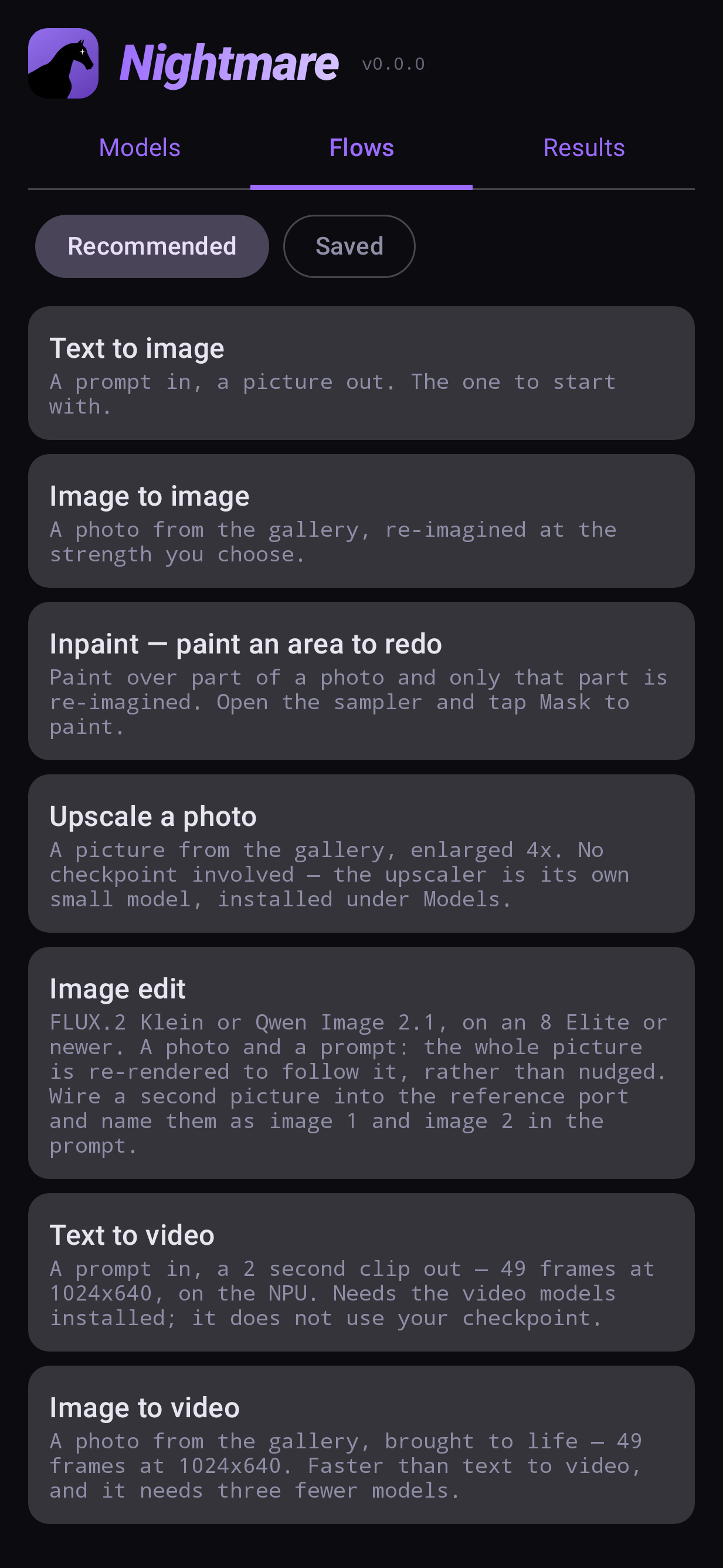
The list is ordered by what the flow asks of your phone, lightest first:
| flow | what it does | needs |
|---|---|---|
| Text to image | A prompt in, a picture out | any model |
| Image to image | A photo re-imagined at the strength you choose | any SD 1.5 / SDXL / Anima / Z-Image model |
| Inpaint | Redo only the area you paint | SD 1.5, SDXL or Anima |
| Upscale a photo | A picture enlarged up to 4× | an upscaler (8–24 MB) |
| Image edit | A photo changed to follow an instruction | FLUX.2 or Qwen Image, 8 Elite |
| Text to video | A prompt in, a 2-second clip out | the video models, 8 Elite |
| Image to video | A photo brought to life | the video models, 8 Elite |
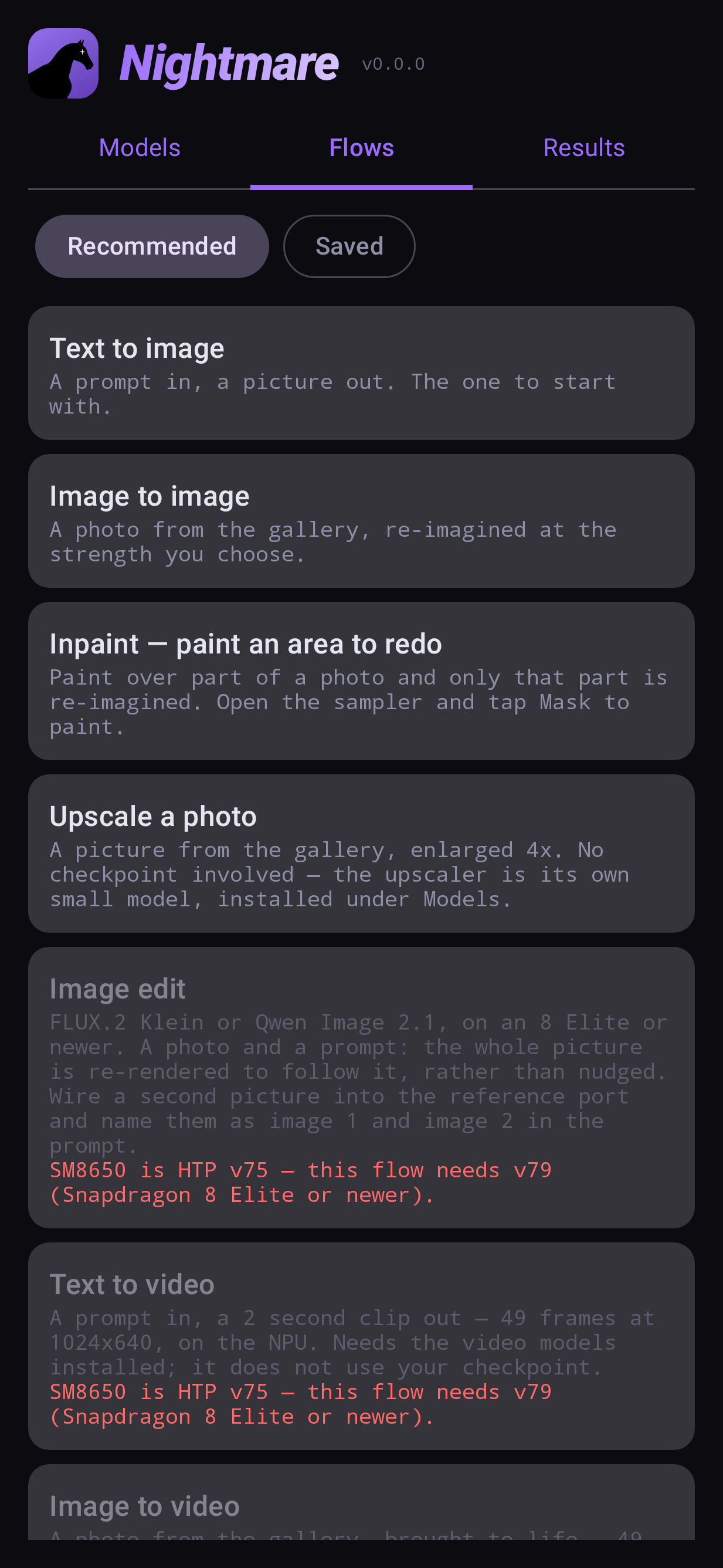
A flow your phone cannot run is shown dimmed and says why — the chip it has and the one it needs — instead of opening and failing later.
The model a flow uses
A flow opens with the model you have selected in Models when that model fits the job, and otherwise with an installed model that does. You can change it on the generator node itself: tap the node, then Checkpoint. Each generator carries its own model, so one flow can use two — for example generate with FLUX.2, then repaint part of the result with an inpainting model. The app loads each model once per Run and tells you before you press Run if it will have to switch.
Your own flows
- Save: the 💾 button at the top of the canvas. The name is pre-filled.
- Open: Flows → Saved, tap the card. The pencil renames it, the bin deletes it (it asks first).
- Share and import: a flow is a small
.jsonfile. Import a flow at the bottom of the Flows tab opens one someone sent you. - From a result: every picture in Results remembers the flow that made it — open it from there to get the exact settings back.
Batching
Any flow can be run many times with a setting varied each time — every seed from 1 to 8, or a grid of steps × CFG. See Batching.