Download, switch and delete
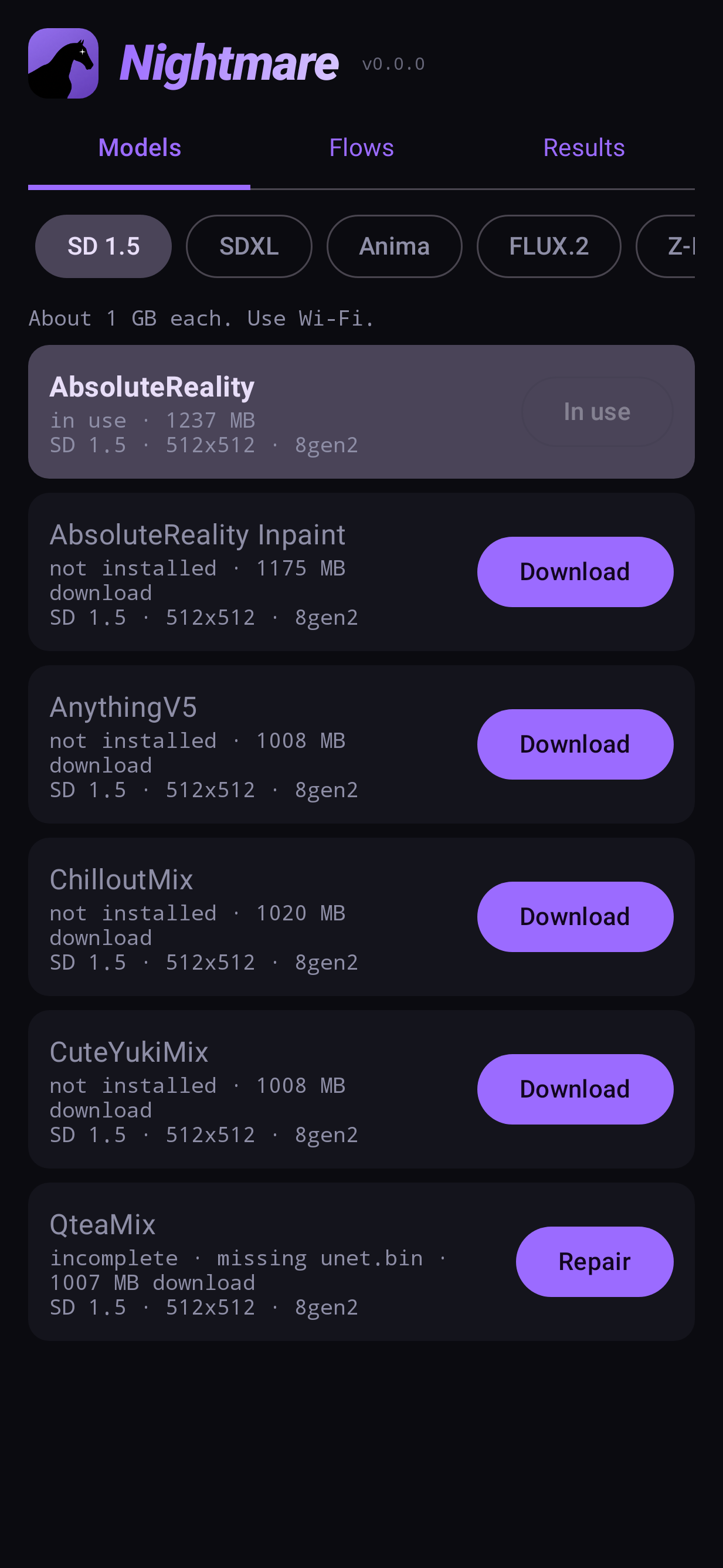
Open Models. Along the top is a tab per family (swipe sideways for more): SD 1.5, SDXL, Anima, FLUX.2, Z-Image, Qwen Image, then Upscalers and Video. Installed models are listed first, the one in use at the very top. A note under the tabs gives the family's typical size and anything to know before downloading.
Reading a row
Each row shows the model's name, a status line, and its family, size and build:
| status | meaning | button |
|---|---|---|
| in use · 1237 MB | Installed and selected | In use |
| installed · 1237 MB | Installed, not selected | Delete, Use |
| not installed · 1008 MB download | Available to download | Download |
| incomplete · missing file | A file is gone (deleted, or a download broke) | Repair |
| this device cannot run it | Your chip is too old for this model | none |
The last part of the line (8gen2, 8gen3, …) is the build your chip gets. The app picks it
for you — a model is built separately for each generation of NPU.
Download
Tap Download. The row shows the size, a progress bar and Cancel. Models are large — use Wi-Fi. If Hugging Face is slow or blocked where you are, change the download source in Settings → Downloads.
Use
Use selects the model: new flows open with it, and the generator nodes on the canvas switch to it (keeping every wire). Each generator node can also have its own model — tap the node and pick under Checkpoint.
Delete
Delete asks first, and tells you how many MB it frees and how much it would cost to download again. Deleting the model in use selects another one.
Repair
A model with a missing file says which one, and Repair downloads just that file — not the whole model.
Where models are kept
By default, in the app's private storage — nothing else can see them, and uninstalling the app
deletes them. Settings can move them to Download/Nightmare, where file managers can reach
them and they survive an uninstall; loading speed is the same. See
Settings → Models folder.