The canvas
The canvas is the main screen: the flow you are working on, drawn as nodes and wires, with the controls around it.
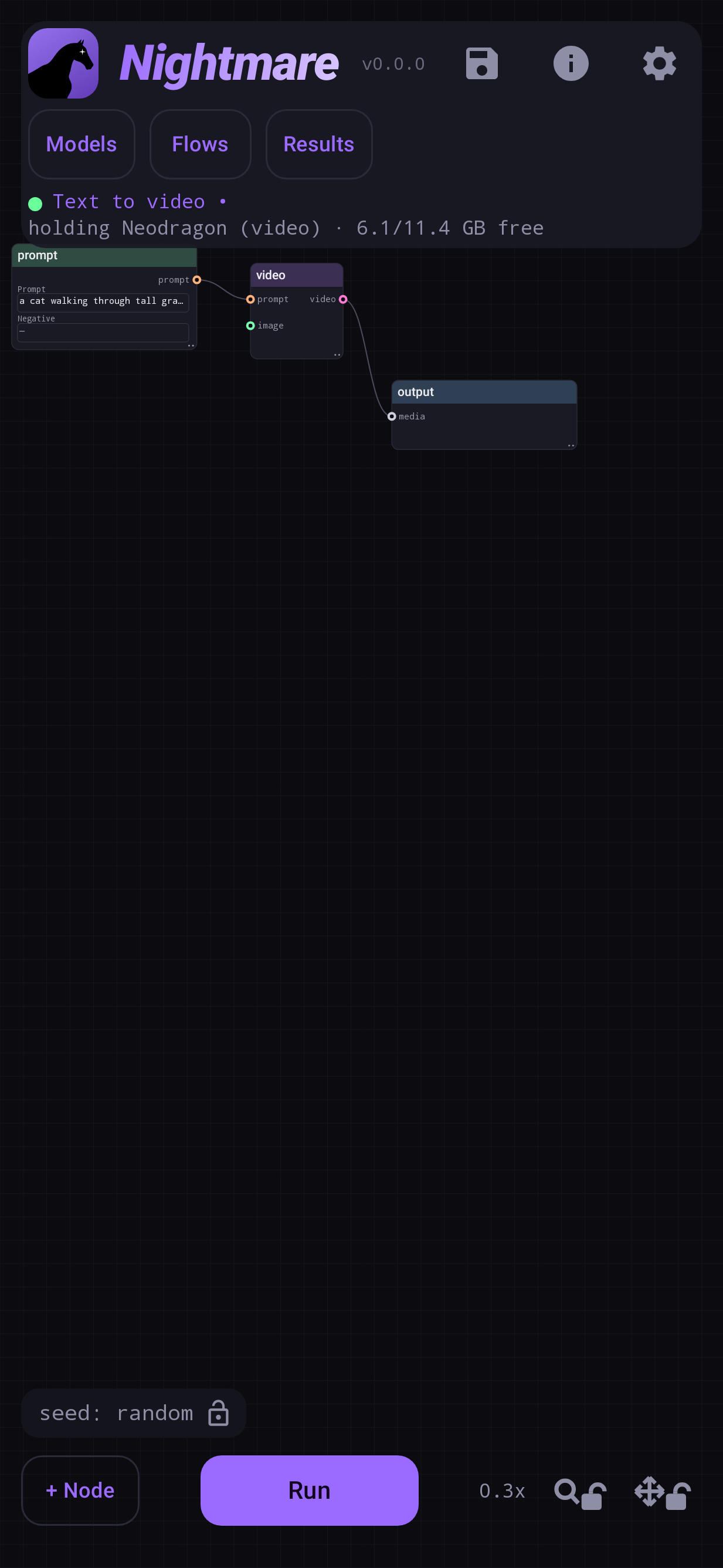
The top bar
| control | what it does |
|---|---|
| Models | Download, switch and delete models. Models |
| Flows | Ready-made flows (Recommended) and your own (Saved). Flows |
| Results | Every picture and clip you have made, with the flow that made it. Results |
| 💾 (save) | Save this flow under a name. It is pre-filled with the flow it came from. |
| ⓘ | This phone's chip and NPU. Install |
| ⚙ (gear) | Settings. Settings |
The line under the buttons tells you the state of things:
- the flow's name, or unsaved flow with a dot when it has changes that are not saved;
- the model that is loaded and whether it is busy, e.g.
AbsoluteReality (idle); - how much memory the phone has free, e.g.
4.9/11.7 GB free.
Nodes and wires
A node is one step. Its title bar says what it is; its body shows its picture, prompt or a short summary. Dots on the left edge are inputs, dots on the right are outputs, and a wire carries a result from an output to an input. The dot colour tells you what kind of thing travels on it (a prompt, a picture, a video).
There are only five kinds of node — see Nodes and their settings:
- Prompt — the text.
- Image — a photo from your gallery.
- Image / Inpaint generators — the model that makes the picture. Its title follows what is wired into it: Text to image, Image to image, Image edit or Inpaint.
- Video — the video generator.
- Output — where the result lands, is kept and (optionally) enlarged.
Gestures
| gesture | does |
|---|---|
| Tap a node | Opens its settings in a sheet |
| Drag a node | Moves it |
| Drag the bottom-right corner of a node | Resizes it (a bigger node shows more of its prompt) |
| Drag empty space | Pans the canvas |
| Pinch | Zooms |
| Drag from an output dot to an input dot | Connects them with a wire |
| Tap a wire, then tap the bin at its middle | Deletes the wire (a double tap on the middle of a wire does both) |
| Long-press a node | Starts multi-select: tap more nodes, then delete them together |
| Tap a picture on a node | Shows it full screen |
The two padlocks at the bottom right lock the zoom (magnifier) and the panning (four-way arrow) separately, so a pinch or a stray drag cannot move the view while you work. The number beside them is the zoom level.
A wire that would make a loop is refused
While you drag a wire, it turns red if connecting it would be refused (for example a wire that would make the flow run in a circle). The reason stays in the bar at the bottom.
The node sheet
Tapping a node opens its sheet: every setting that node has, explained under each control. Along the top of the sheet is every node in the flow, in the order they run; tap one, or swipe sideways, to move to the next without closing. Pull the sheet down to close it.
At the bottom of each sheet, Reset node puts every setting back to its default and Delete node removes it (it asks first, and names what it would remove).
Adding nodes
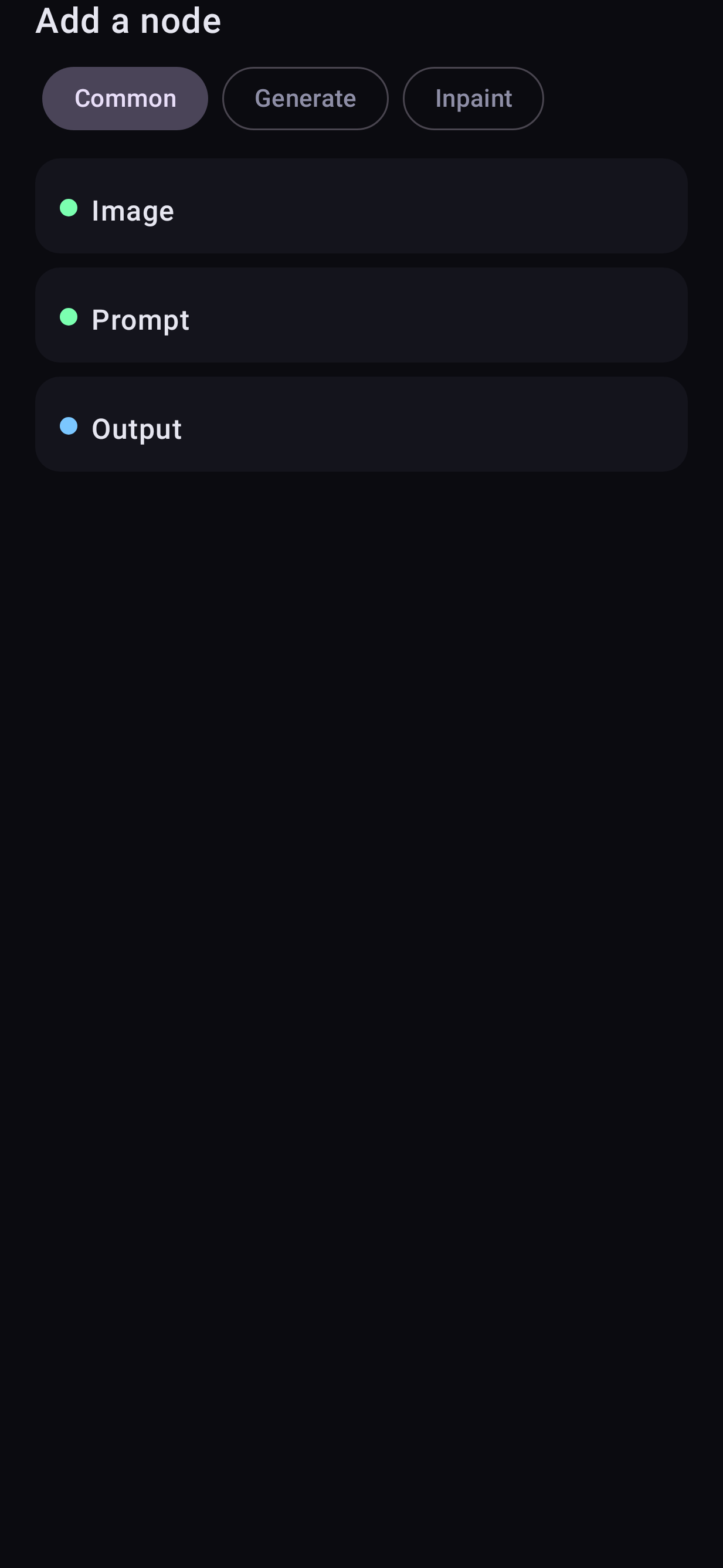
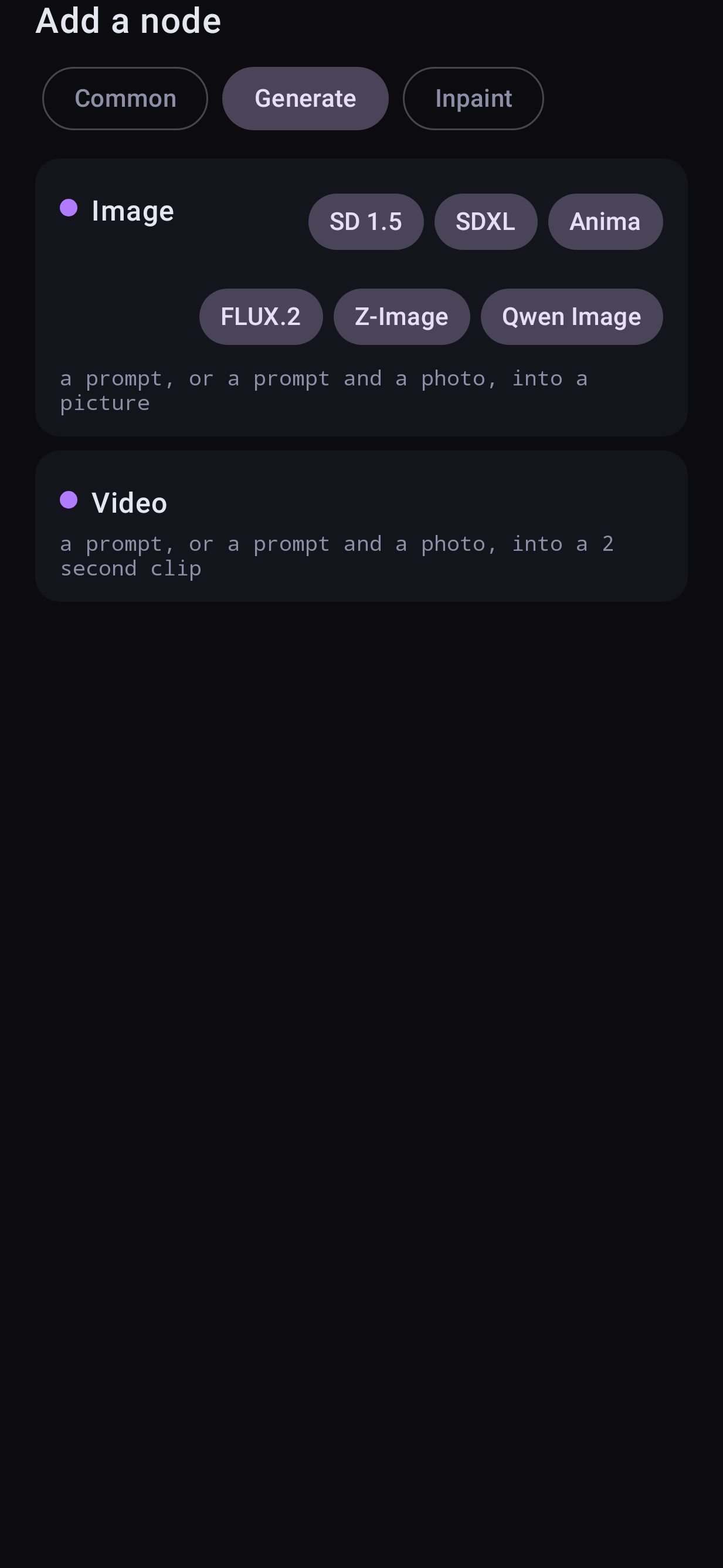
+ Node opens the palette in three tabs:
- Common — Image, Prompt, Output.
- Generate — the Image generator (with a chip per model family) and Video.
- Inpaint — the Inpaint generator, per family.
The new node appears in the middle of the screen. Wire it in, set it up, and Run.
Running
Run runs the whole flow. Nodes whose settings and inputs have not changed since the last Run are not run again — change the prompt, and only the generator and what follows it runs.
While it runs, the run log above the button shows:
- the node running now and its progress as a percentage;
- each finished node and how long it took;
- the total time once it is done.
The ✕ hides the log (it does not stop the run). The copy button copies the whole log — paste it into a bug report. To stop a render, tap Cancel on the Run button.
If a node fails, it turns red and says why underneath itself, and everything after it is shown as blocked.
The seed chip
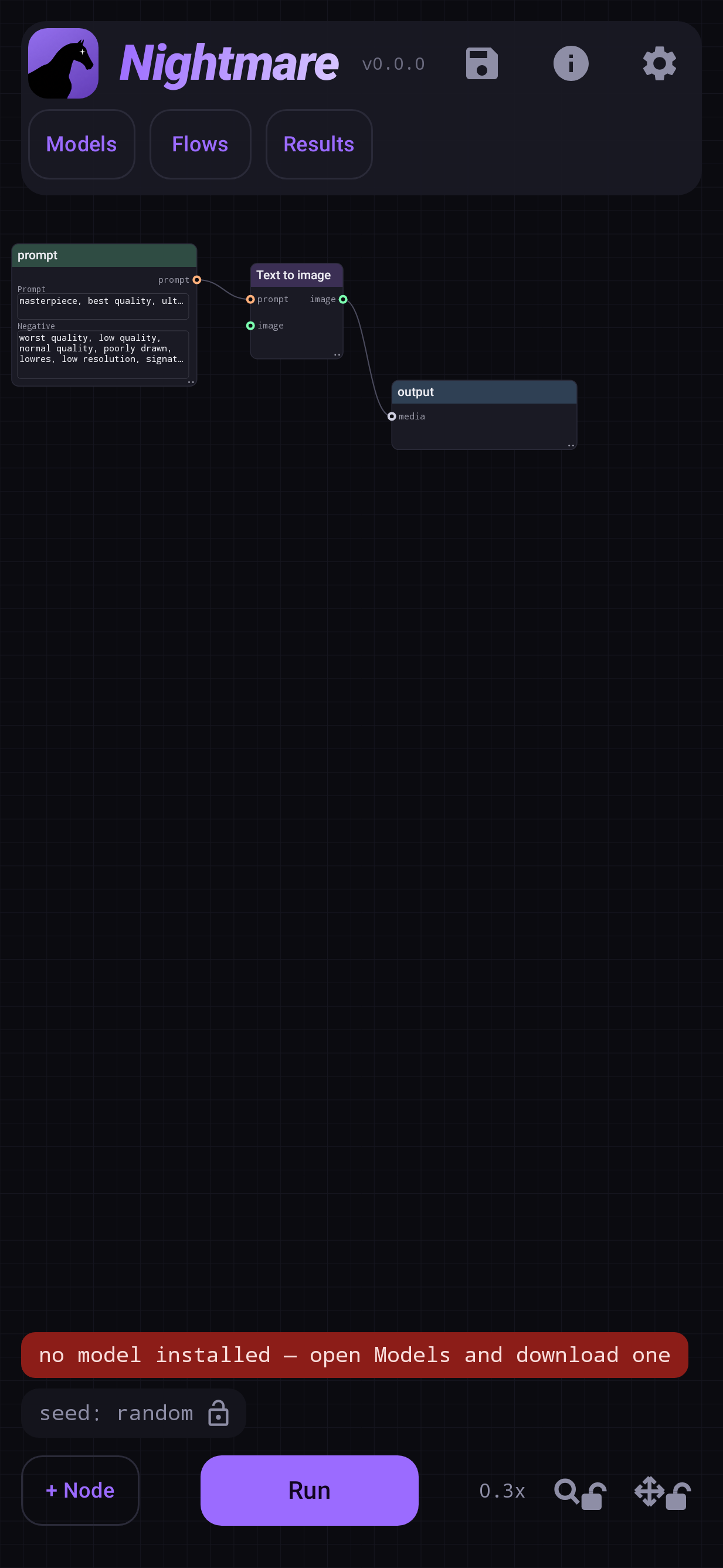
seed: random means every Run makes a new picture. Tap the padlock to lock the seed of
the last picture: from then on every Run starts from that same noise, so you can change the
prompt or a setting and see only the effect of that change. Tap again to unlock.
Saving your work
The canvas saves itself as you go — close the app and it reopens where you left it, zoom and
position included. To keep a flow for later, tap 💾 and name it; it then appears under
Flows → Saved. Flows can also be shared as a .json file and imported with
Import a flow at the bottom of the Flows tab.