Chat
Ask for pictures in words. The agent behind the chat is an AI model you bring your own key for: it looks at what is installed, picks a flow and a model, writes the prompt, runs it on your phone, and shows you the picture in the chat. Tell it what to change and it edits the flow and runs again. It never sends your pictures to the AI model. Open it with Chat at the top, beside Default and Advanced: switch to either to see the flow it built; the chat stays where you left it.
Setting it up
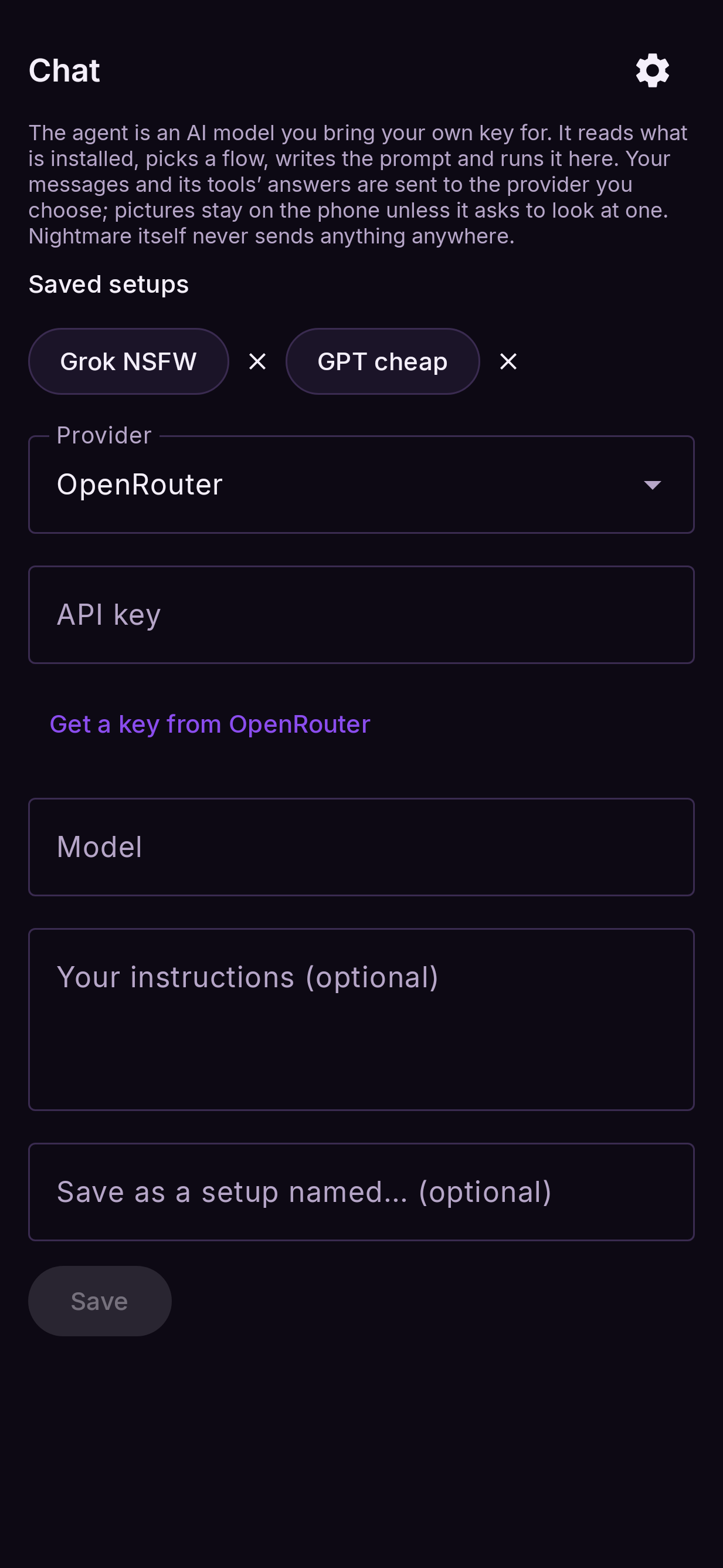
The first time, the agent shows its setup (the ⚙ brings it back):
- Provider: OpenRouter (one key, hundreds of models), OpenAI, DeepSeek, xAI, Groq, or
Other for any OpenAI-compatible address, such as
llama-serveror LM Studio on your PC. - API key: from the provider's site (Get a key from … opens it). It is stored encrypted with Android's keystore and never shown again; leave the field empty to keep it.
- Model: start typing in the box and pick from the provider's models as they filter. The model must support tool calling; it does not need to see pictures. With OpenRouter the list shows only models the chat can run on your key: they call tools, hold a long enough conversation, and a reply fits what your credits allow per request (with few or no credits, the cheap and free models). If a reply would cost more than that, the chat asks for a shorter one instead of failing. You can still type any model's name.
- Your instructions (optional): added to the agent's own, such as a style, a language, or what is fine.
- Save as a setup named… (optional): keep this provider, model, key and instructions under a name; Saved setups at the top of the setup switches between them.
Starting a chat
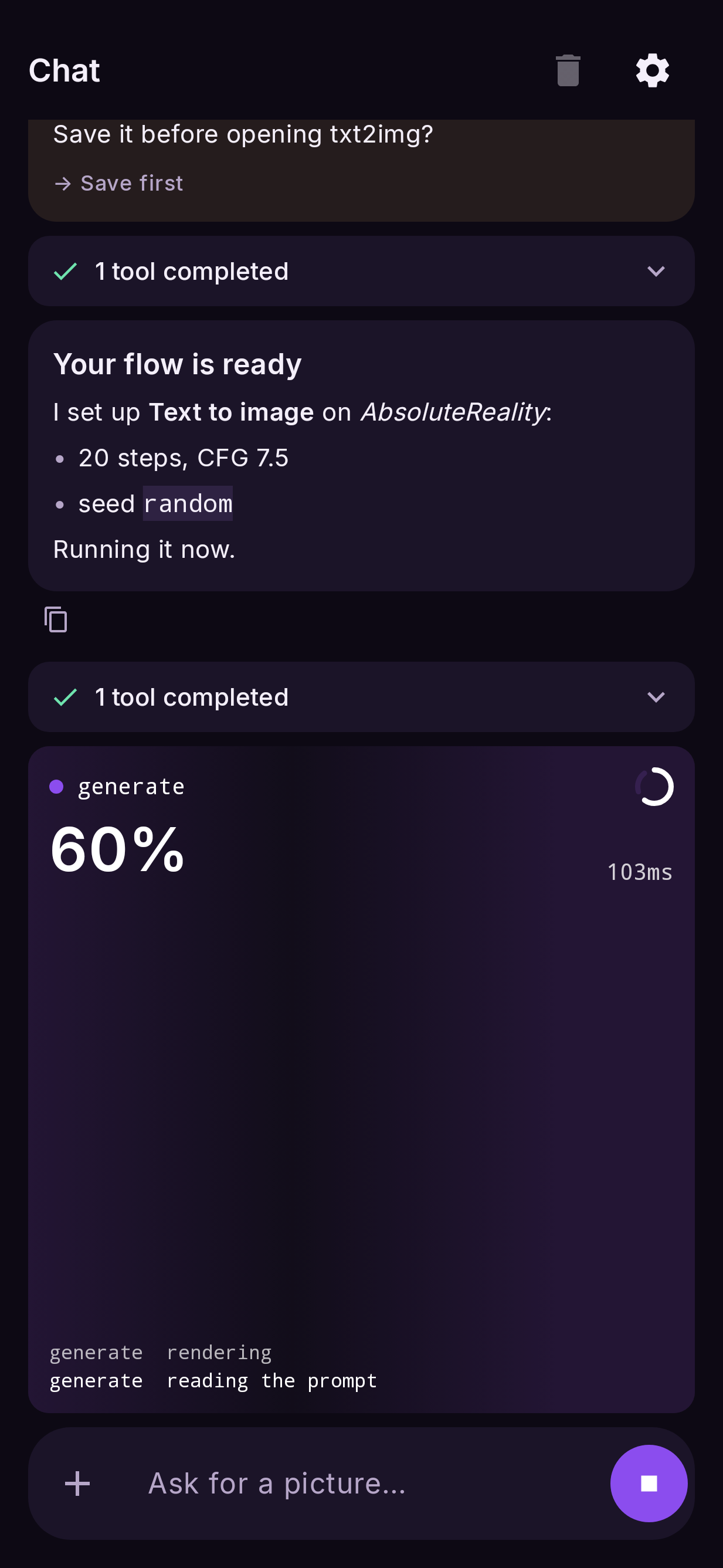
Just say what you want. Ask for a picture ("a watercolour fox in snow") and the agent builds the flow and runs it, with the run shown in the chat as the picture's frame and its log as it goes. Ask about the flow on the canvas ("make it 3:4 and darker", "add a pixel-art LoRA") and it changes that flow. Say "set up" or "don't run" and it builds the flow and stops, so you can check it and press Run yourself.
What it can do
| it can | how |
|---|---|
| open a flow, or change the one on the canvas | any setting of any node, the model, the prompt; it can add, wire and remove nodes |
| save the flow and press Run | exactly as you would. The result lands on the output node and in Results |
| find and download LoRAs | searches CivitAI (or Hugging Face) for your model's family, downloads one and uses it with its trigger words |
| delete a LoRA | asks you first |
| rework a result | feeds it into image to image |
| look at a result | only with a model that can see pictures |
| find the settings people use with a checkpoint | reads CivitAI: base model, trigger words, sampler, steps, CFG and example prompts from its most-liked pictures |
Its answers are formatted (headings, lists, code); the tools it used fold into one line per answer. Tap to see them. Every message has a copy button. Run sits at the bottom of the Chat view too, and opens the Default view on the output, where the picture appears.
Before it replaces a flow with unsaved changes, it asks: Save first, Discard or Cancel. Stop ends its turn, answers any question with Cancel and stops a render in flight. The bin clears the chat.
Scroll up to re-read and the chat stays put: replies that arrive meanwhile show as a N new messages button, which takes you to the first of them.
Attaching a picture
+ beside the message box attaches a picture. The phone describes it and tags it (with the describe models, if installed) and tells the agent what it shows; the agent then uses it where the flow needs it: the photo to rework, a ControlNet picture, or an IP-Adapter reference. The picture itself stays on the phone.
Privacy
Your messages and the tools' answers (the list of your models and flows, render results) go to the provider you chose. That is how it thinks. Pictures stay on the phone unless the agent asks to look at one. Nothing else leaves the phone, and without a key nothing is sent at all.
What the agent will write is up to the model, its provider and your instructions. Adult and NSFW requests included. Nightmare holds one line itself, whatever the model: no sexual content involving minors.