Nodes and their settings
There are five kinds of node. Every flow — ready-made or yours — is built from these.
| node | palette tab | inputs | output |
|---|---|---|---|
| Prompt | Common | — | prompt |
| Image | Common | — | image |
| Image generator | Generate | prompt, image (+ reference, + control) | image |
| Inpaint generator | Inpaint | prompt, image | image |
| Video generator | Generate | prompt, image | video |
| Output | Common | media | — |
Every node's sheet ends with Reset node (all settings back to default) and Delete node. Double-tap a node's name in its sheet to rename it.
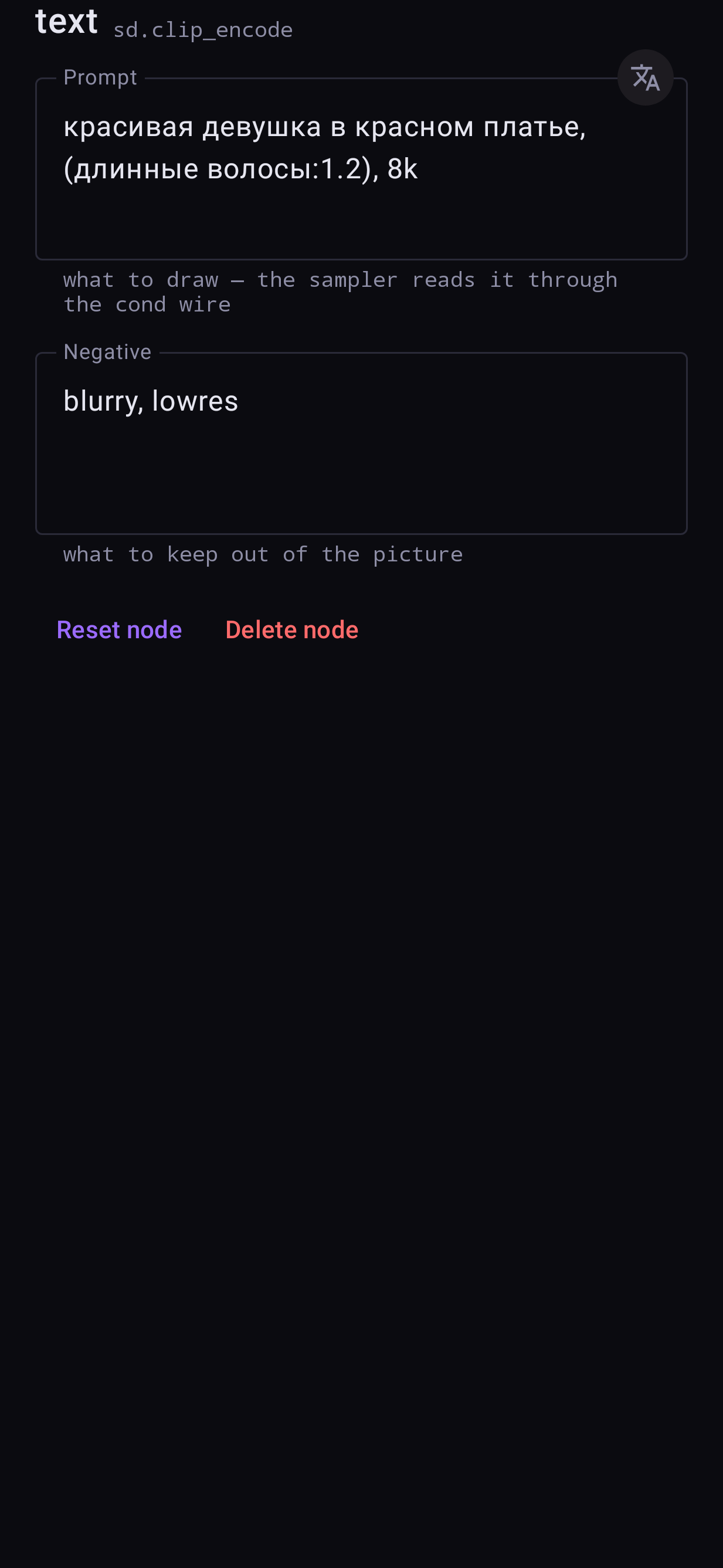
Prompt
Holds the text. Both boxes are shown on the node itself; tap one to edit it.
| setting | what it does |
|---|---|
| Prompt | What to draw |
| Negative | What to keep out of the picture (ignored at CFG 1 — FLUX.2, Z-Image, Qwen Image) |
A token count under each box tells you how much of the model's prompt limit you have used. If the prompt is in Russian or Chinese, a 文A button translates it to English on the phone; the same button undoes it. See Settings → Translation.
Image
A photo from your gallery. Tap Choose to pick one (Change once there is one); it appears on the node straight away, no Run needed. The picture's own buttons swap it or clear it.
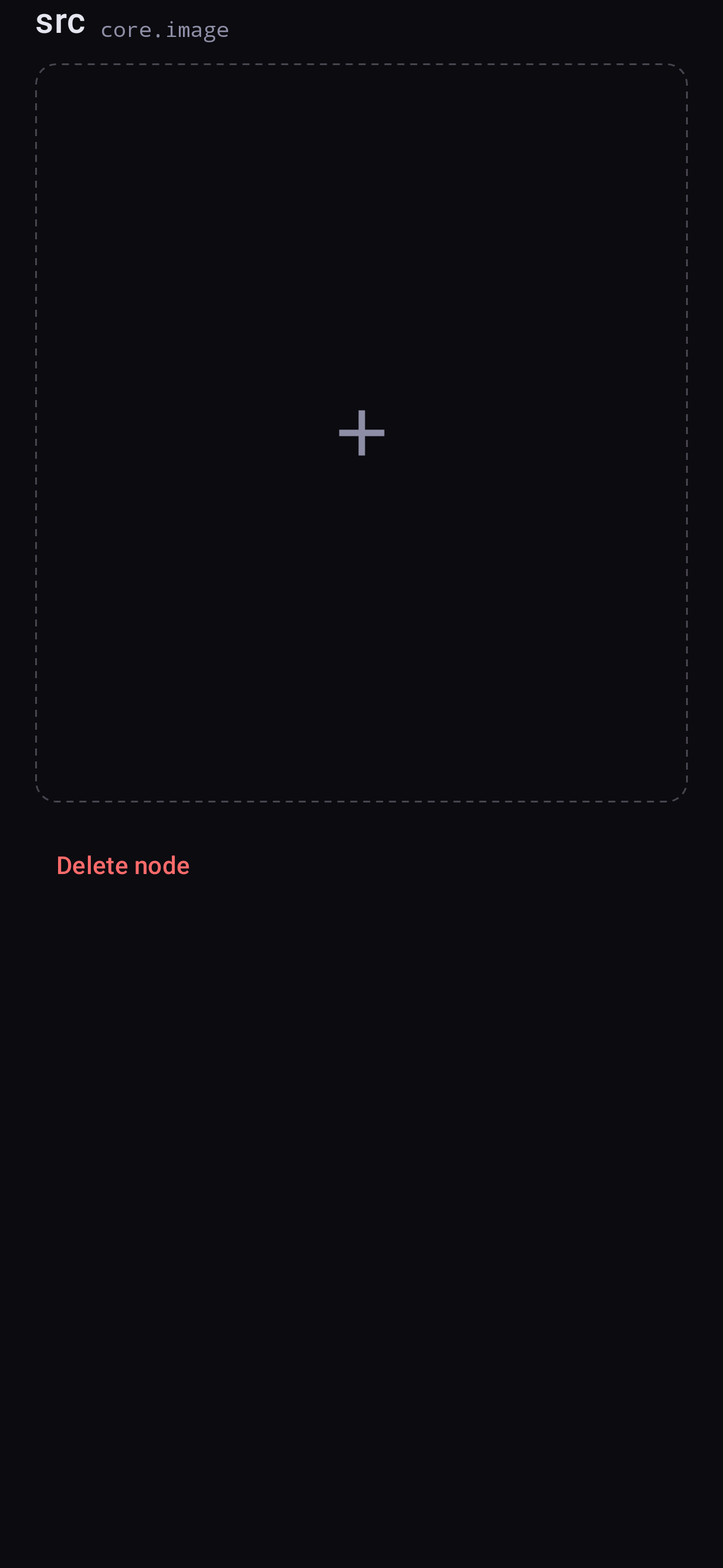
Image generator
The node that makes the picture. Its title follows what is wired into it:
| wired in | title |
|---|---|
| prompt only | Text to image |
| prompt + image | Image to image — or Image edit on FLUX.2 and Qwen Image |
| prompt + reference | Image edit (FLUX.2 and Qwen Image) |
The palette card is Image with a chip per family — SD 1.5, SD 1.5 Swap, SDXL, Anima, FLUX.2, Z-Image, Qwen Image. The family decides which settings appear.
| setting | families | what it does |
|---|---|---|
| Checkpoint | all | The model. Switching family rewrites the node and keeps its wires |
| Steps | all | Refinement passes. Opens on the model's own recommended value |
| CFG | all | How strictly the prompt is followed. FLUX.2, Z-Image and Qwen are made for 1 — above 1 the negative prompt is read, but the picture burns quickly |
| Seed | all | 0 = a new picture every Run. Type a seed shown on a node to get that one back |
| Scheduler | all | The sampling method; a distilled model usually wants its author's choice. DiT models always use Euler |
| Karras sigmas | SD 1.5, SDXL, Anima | An alternative noise schedule (not with LCM) |
| Denoise | with an image | How much of the photo is replaced — 0 keeps it, 1 replaces it. Image to image opens at 0.65, Image edit at 1.0 |
| Resolution | SD 1.5 | The sizes this model supports. A new size reloads the model on the next Run |
| Shape | SDXL, Anima | Crops the fixed 1024 square to an aspect. No reload |
| Width, Height | FLUX.2, Z-Image, Qwen | 512–2048 in 64-pixel steps. No reload |
| LoRAs | FLUX.2, Z-Image, SD 1.5 Swap | Adapters on top of the model, each with a strength. LoRAs |
| ControlNet tile | SD 1.5 Swap | Type (canny, depth, openpose or none), strength, and the picture — wired into control, else chosen on the tile, else the node's own photo. With a photo wired, the picture follows the node's crop window; with none it is fitted into 512×512, never cropped. Canny finds the edges; openpose finds the pose in a photo (the Pose Detector, 19 MB) or uses a skeleton as it is; depth makes a depth map from a photo (the Depth Estimator, 99 MB, about 1 s) or uses a ready-made one. Each ControlNet (about 370 MB) and each estimator is a download offered on the tile and in Models → Tools; a ControlNet not yet built for your chip says so The tile shows what the ControlNet sees |
| Crop frame | with an image | Which part of the photo is used. Tap the picture on the node to frame it |
| Pad | with an image | What fills the frame where it runs off a small photo: Black, Blur; edit models also Green |
| Allow padding | FLUX.2, Qwen (edit) | Lets the frame zoom out past the photo; the padding is generated |
| Reference region | FLUX.2, Qwen | Which part of the reference picture is used |
The bars icon beside Seed, Steps, CFG, Denoise and Scheduler arms that setting for a batch.
Inpaint generator
Everything the image generator has, plus the mask. Families: SD 1.5, SD 1.5 Swap (with its LoRAs and ControlNet; a blend inpaint, so a big fill can leave a soft seam), SDXL, Anima.
| setting | what it does |
|---|---|
| Mask | The area to repaint. Inpaint |
| Only masked | On (default): work on a crop around the mask — more detail where you painted |
| Stitch to original image | Off (default): the result is the frame you chose. On: pasted back into the whole photo |
| Grow | Widen or narrow a tapped or picked area |
| Feather | Soften the mask's edge |
| Enable tap to select | Tap an object in the mask editor to select it (Segment Anything, 87 MB) |
| Enable auto mask | Pick Clothes, Face, Hair, Shoes or Bag by name (29 MB); the flow remembers it |
| Enable Add Objects | Paste objects from another photo and repaint only their edges. Add Objects |
| Pad | Black, Blur or Green, for frames that run past the photo (outpainting) |
The three Enable boxes remember how you last left them: a new Inpaint node starts the same way.
Video generator
The text- and image-to-video model. Needs the video models (Models → Video).
| setting | what it does |
|---|---|
| Seed | 0 = a new clip every Run |
| Upscale | On (default): 2× to 1024 × 640. Off: 512 × 320, a little faster |
| Crop frame | With a photo wired in: which part is animated |
Output
Where the result lands. It shows the picture or clip; tap it to see it full screen.
| setting | what it does |
|---|---|
| Autosave | On (default): every Run is kept in Results with the flow that made it |
| Auto upscale | Enlarge the result before keeping it. The node then shows what it received above what it made |
| Upscaler | Which upscaler to use — install them under Models → Upscalers |
| Scale | 2×, 3× or 4×. A result that would pass 4096 px gets the largest scale that fits |
| Save (video) | Also write the MP4 to Movies/Nightmare |