Image to image
A photo from the gallery, re-imagined at the strength you choose.
Nodes: Prompt and Image → Image to image → Output.
Use it to restyle a photo (a painting of it, an anime version), or to take a rough picture and let the model redraw it with more detail.
FLUX.2 and Qwen Image use Image edit instead
These two are edit models: give them a photo and they re-render it to follow an instruction. That is its own flow — see Image edit.
Steps
- Flows → Image to image.
- Tap the image node and choose a photo. It appears on the node straight away.
- Tap the prompt node and describe the result you want — describe the whole picture, not just the change.
- Tap the Image to image node and set Denoise (below).
- Run.
Denoise: how much changes
Denoise runs from 0 to 1:
| denoise | result |
|---|---|
| 0.2 – 0.4 | Close to the photo: colours and details shift, the composition stays |
| 0.5 – 0.7 | A real reinterpretation that keeps the layout (0.65 is the default) |
| 0.8 – 1.0 | Mostly new; the photo only guides the overall shapes |
Framing the photo
The generator draws at a fixed size and shape, so the photo is framed to that shape first. Tap the picture on the generator node (or Crop in its sheet) to open the framing view: drag the photo to move it and pinch to zoom; the frame is exactly what will be sent.
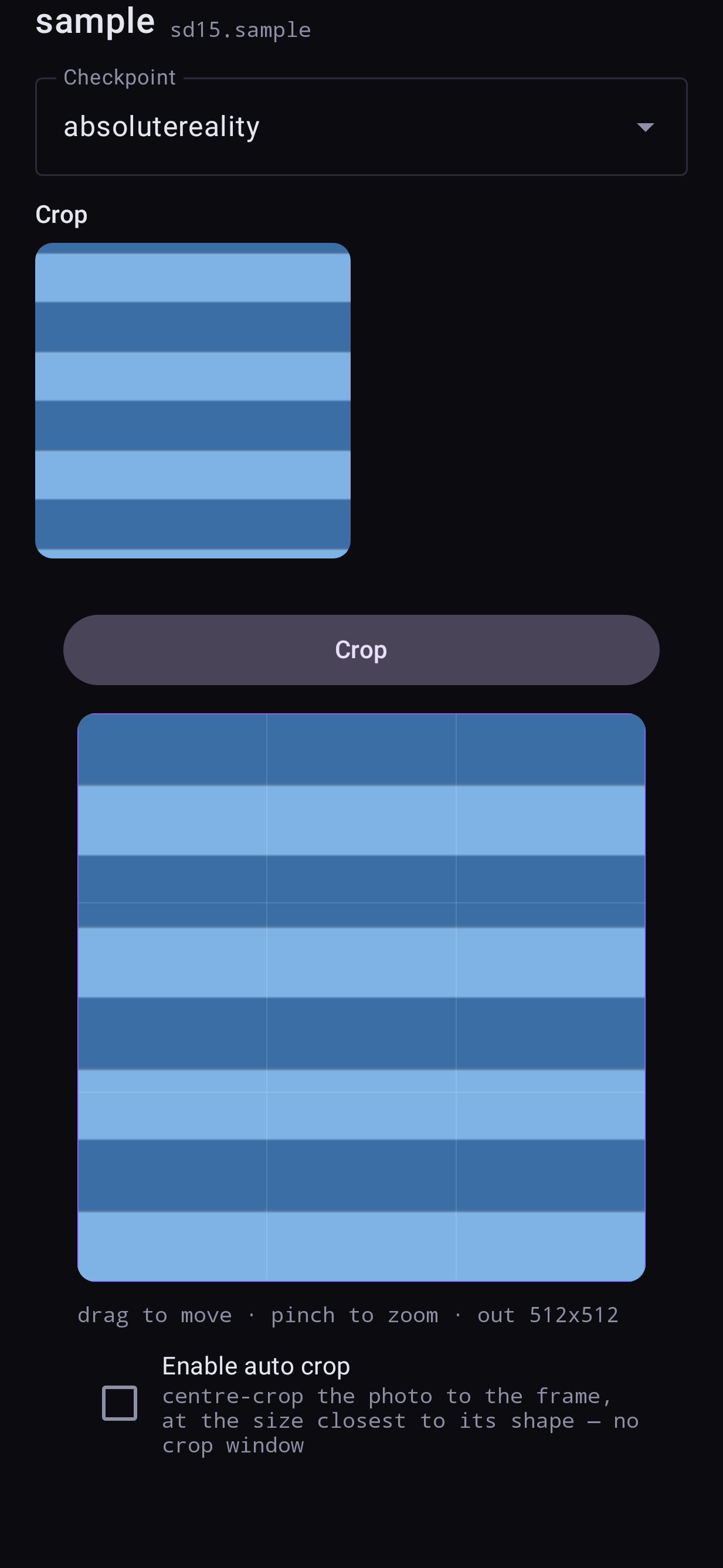
If the photo is smaller than the frame, the gaps are filled with Pad: black, or the photo's own edges blurred. The photo is never stretched.