Text to image
A prompt in, a picture out. The one to start with.
Nodes: Prompt → Text to image → Output.
Steps
- Flows → Text to image.
- Tap the prompt node and write what you want, and what you do not want in Negative.
- Optional: tap the Text to image node to choose the model, the size and the sampling settings (below).
- Run. The picture lands on the output node and in Results.
Writing prompts for each model family
The model families read prompts differently:
| family | write it as | example |
|---|---|---|
| SD 1.5, SDXL | short tags, most important first | portrait of an old sailor, weathered face, rim light, 35mm |
| Anima | anime-style tags | 1girl, silver hair, school uniform, cherry blossoms |
| FLUX.2, Z-Image, Qwen Image, Krea 2 | plain sentences | An old sailor smiling at the camera, late afternoon light behind him. |
- For SD 1.5 and SDXL you can weight a phrase:
(red scarf:1.3)for more,(hat:0.7)for less. - FLUX.2, Z-Image, Qwen Image and Krea 2 are run at CFG 1, where the negative prompt is not read at all. Put what you want in the prompt instead.
- A prompt in Russian or Chinese can be translated to English on the phone with the 文A button on the prompt box (SD 1.5 and SDXL only read English). See Settings → Translation.
The generator's settings
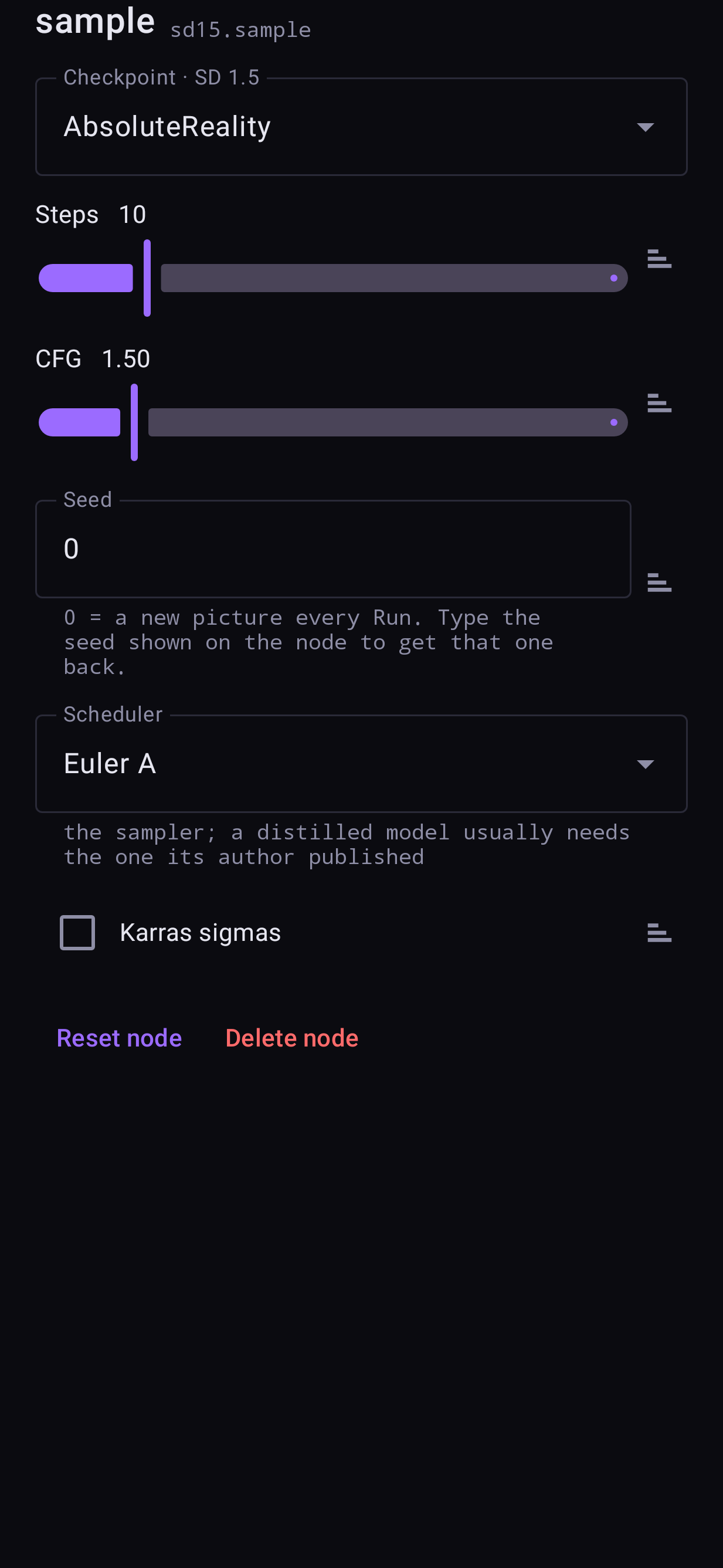
Tap the Text to image node:
| setting | what it does | tip |
|---|---|---|
| Checkpoint | The model | Grouped by family; only installed models are listed |
| Steps | How many refinement passes | More is slower; each model opens on the number its author recommends |
| CFG | How strictly the prompt is followed | Too high burns colours; turbo/distilled models want ~1–2 |
| Seed | The starting noise | 0 = a new picture every Run. Type a seed shown on a node to get that picture back |
| Scheduler | The sampling method | A distilled model usually needs the one its author published |
| Karras sigmas | A different noise schedule | Try it for smoother detail on SD models |
| Resolution / Shape / Width, Height | The picture's size | Depends on the family — below |
Size, per family
- SD 1.5 — pick a Resolution from the sizes the model supports (512 square up to 1024, portrait and landscape). A different size reloads the model on the next Run.
- SDXL and Anima — these draw a fixed 1024 square; Shape crops it to the aspect you choose. No reload.
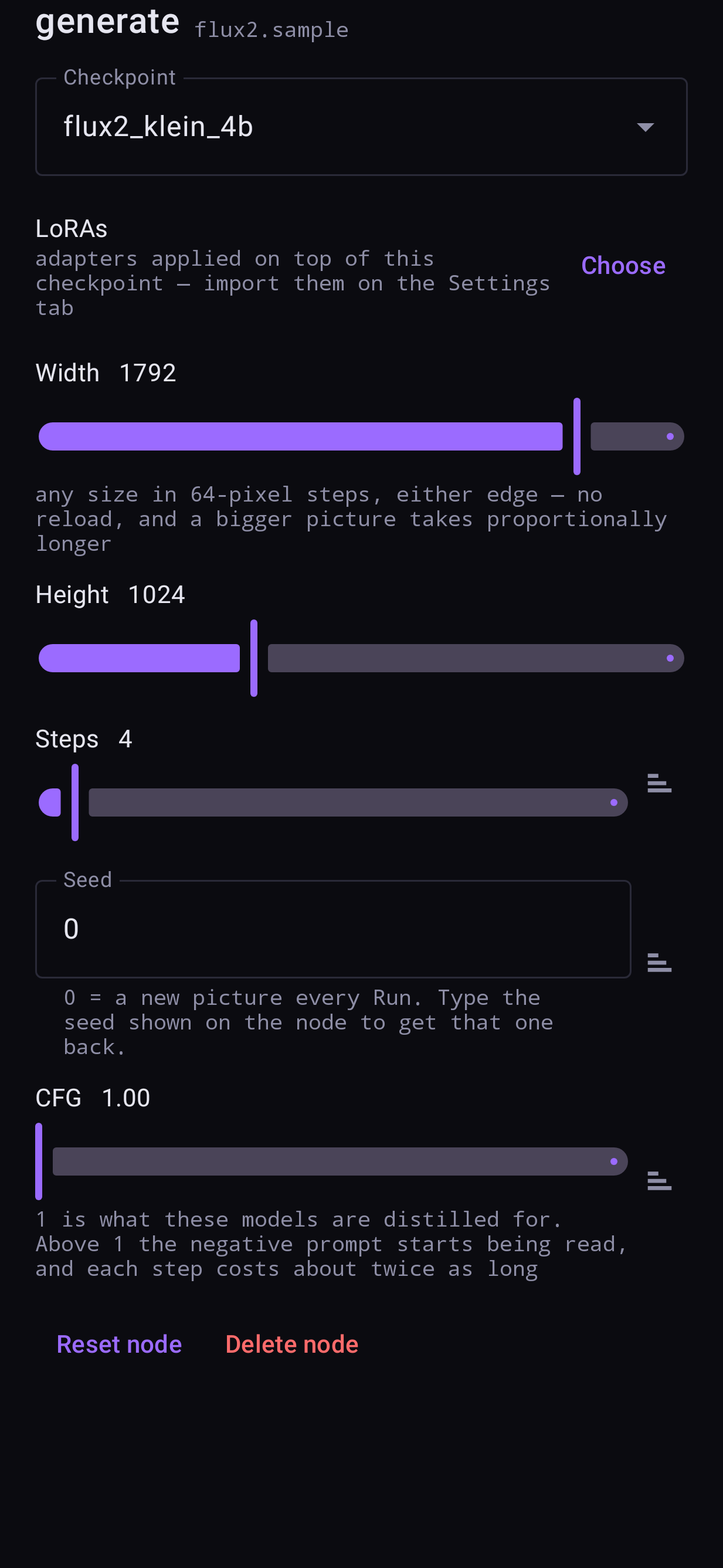
- FLUX.2, Z-Image, Qwen Image, Krea 2 — Width and Height sliders, any size from 512 to 2048 in 64-pixel steps. No reload. Bigger takes longer, roughly in proportion to the area. FLUX.2 Klein 9B starts at 768: on a 12 GB phone, 1024 may be closed by Android when other apps hold memory.
How long it takes
Roughly, on a Snapdragon 8 Elite:
| family | a 1024-ish picture |
|---|---|
| SD 1.5 (512) | a few seconds |
| SDXL, Anima | tens of seconds to over a minute |
| FLUX.2 Klein 4B (4 steps) | under a minute |
| FLUX.2 Klein 9B (4 steps, 768²) | about a minute |
| Qwen Image 2.1 (20 steps, 1024²) | about 4 minutes |
The first Run after choosing a model also loads it, which adds a few seconds (more for the large ones).