Your first picture
This walkthrough uses AbsoluteReality, a realistic SD 1.5 model that runs on every supported phone. It is about 1.2 GB — use Wi-Fi.
1. Download a model
- Tap Models at the top of the screen.
- The SD 1.5 tab is open. Find AbsoluteReality and tap Download. A progress bar shows the size and how far it has got; Cancel stops it.
- When it finishes, tap Use. The row now says In use.
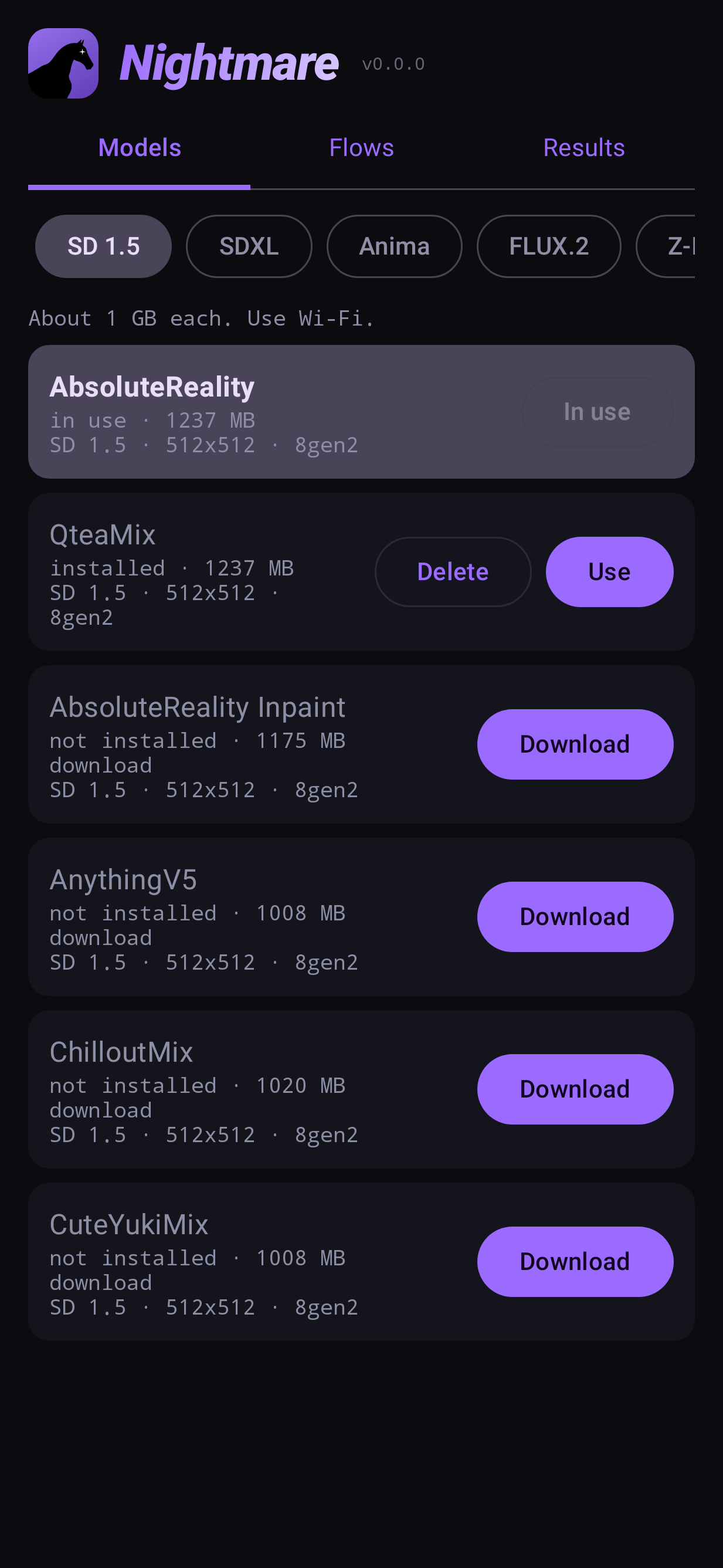
Close the panel by pulling it down (drag from the top of it towards the bottom of the screen). Every panel in the app closes this way, and so does Back.
2. Open the Text to image flow
- Tap Flows. The Recommended tab lists the ready-made flows.
- Tap Text to image. It opens on the canvas: a prompt node, a Text to image node and an output node, already wired.
3. Write what you want
Tap the prompt node. A sheet slides up with two boxes:
- Prompt — what to draw. For SD 1.5 models, short comma-separated phrases work best:
a red fox in snow, morning light, detailed fur. - Negative — what to keep out:
blurry, low quality, watermark.
The boxes already hold a starting prompt suited to the model. Replace it with your own and pull the sheet down.
4. Run
Tap Run. A log above the button shows what is happening — the node running, a percentage, and each finished node's time. On a recent phone an SD 1.5 picture takes a few seconds; the very first Run also loads the model, which adds a few more.
The picture appears on the output node. Tap it to see it full screen: pinch or double-tap to zoom, and use the buttons to save it to the gallery, share it, or keep it in favourites.
5. Make another
Every Run makes a new picture, because the seed is random (the chip above Run says
seed: random). If you like one and want to keep working on that picture — changing the
prompt a little, for example — tap the padlock on that chip. The seed of the last picture is
locked and every Run starts from it until you unlock it.
Every picture is kept
Each result is saved in Results together with the flow that made it, so you can always go back and reopen the exact settings. See Results.
Where next
- Try a different model — each family has its own style. Models.
- Start from a photo instead: Image to image.
- Learn the canvas properly: The canvas.